![logo-1-1.png]](https://support.proformex.com/hs-fs/hubfs/logo-1-1.png?height=22&name=logo-1-1.png)
Annuity Overview Page
Annuity records now include an Overview page — a single screen that surfaces the most important information about a contract at a glance. Overview is the default landing view when you open an annuity record, appearing before Contract Details in the navigation.
The page brings together eight sections: Insights & Actions, Key Metrics, Contract Timeline, Value Breakdown, Subaccount Snapshot, Riders, Key Contacts, Most Recent Transactions, and Tasks.
Tip: Every section header on the page is clickable and will navigate you to the corresponding page within the record for additional details — with the exception of Insights & Actions and Contract Timeline, which are summary-only sections.
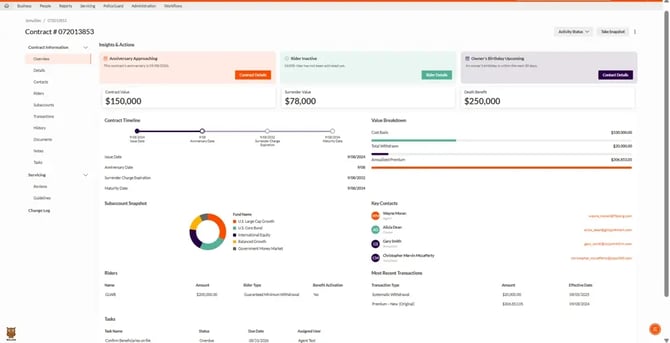
Insights & Actions
A card-based alert system flags contracts that need attention. Up to three cards display at a time, each with a colored tint, a title, a short description, and an action button linking to the relevant page. If nothing needs attention, the page shows: "No actions needed at this time. Your contract is in good standing."
Cards can surface for:
- Rider Inactive — one or more riders haven't been activated
- Anniversary Approaching — contract anniversary within 90 days
- No Surrender Charge — contract value equals surrender value
- Annuitants Entering RMD Age — annuitant turns 72+ within 90 days
- MYGA Approaching Guarantee Period End — MYGA guarantee period ends within 90 days
- Surrender Period Ending Soon — surrender charge expires within 90 days
- Surrender Period Already Ended — contract is past its surrender charge expiration
- Fixed Annuity Over 10 Years — an in-force fixed annuity issued more than 10 years ago
- RMD Remaining — an active contract still has an outstanding RMD balance
- Owner's Birthday Upcoming — owner's birthday within 30 days
Key Metrics
Contract Value, Surrender Value, and Death Benefit are displayed prominently at the top of the page, clearly labeled and formatted for quick reading. Clicking the section header takes you to full Contract Details.
Contract Timeline
A horizontal timeline visualizes a contract's lifecycle from Issue Date through Anniversary Date, Surrender Charge Expiration, and Maturity Date, with each milestone labeled and dated. A supporting list below the timeline shows the full dates for each milestone.
Value Breakdown
Four key figures — Total RMD Amount, Cost Basis, Total Withdrawn, and Annualized Premium — are shown as color-coded horizontal bars on a shared scale, with currency values right-aligned. Clicking the section header takes you to full Contract Details.
Subaccount Snapshot
A donut chart shows allocation distribution across subaccounts. The top 5 subaccounts by Fund Value are shown individually; any additional subaccounts are grouped into an "Other" segment. A color-coded legend maps fund names to chart segments. Clicking the section header opens the full Subaccounts page.
Riders
The top 3 riders (by highest amount, or alphabetically if amount isn't available) display in a 4-column view: Name, Amount, Rider Type, and Benefit Activation. Clicking the section header opens the full Riders page.
Key Contacts
Up to 4 key contacts display at a glance — one from each role, when available:
- Agent — primary service agent, or first alphabetically
- Owners (up to 2) — alphabetical
- Insured/Annuitant (up to 2) — Primary and Joint prioritized, then alphabetical
- Beneficiary — primary, or first alphabetically
Each contact shows a color-coded initials avatar (Agent: orange, Owner: teal, Annuitant: purple, Beneficiary: yellow), name, role, and email (or "--" if unavailable). Clicking the section header opens the full Contacts page.
Most Recent Transactions
The 3 most recent transactions display by default, sorted newest first, showing Transaction Type, Amount, and Effective Date. Clicking the section header opens the full Transactions page.
Tasks
The 3 most urgent tasks display by default, sorted by due date with the most overdue task first, showing Task Name, Status, Due Date, and Assigned User. Clicking the section header opens the full Tasks list, including completed tasks.
Life Policy Overview Page
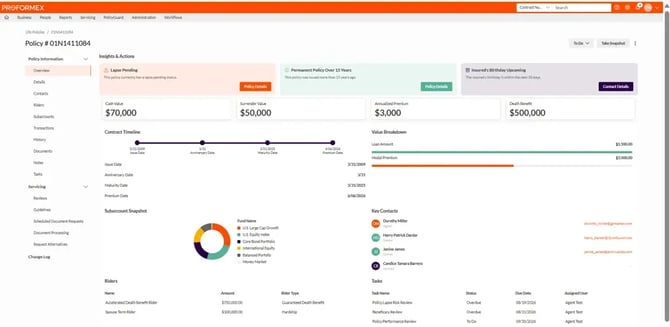
Life Policies now include an Overview page — a dashboard-style view that surfaces key policy information, health indicators, insights, and recommended next steps at a glance. Overview is the default landing view when you open a life policy record, appearing before Policy Details in the navigation.
The page is tailored to policy type, showing Insights & Actions, Key Metrics, Contract Timeline, Riders, Key Contacts, and Tasks for all policies — with Value Breakdown and Subaccount Snapshot available for Permanent policies only.
Tip: Every section header on the page is clickable and will navigate you to the corresponding page within the record for additional details — with the exception of Insights & Actions and Contract Timeline, which are summary-only sections.
Insights & Actions
A card-based alert system flags policies that need attention. Up to three cards display at a time, each with a colored tint, a title, a short description, and an action button linking to the relevant page. If nothing needs attention, the page shows: "No actions needed at this time. Your contract is in good standing."
Cards can surface for:
- Lapse Pending — an active policy has a lapse-pending status (permanent policies take priority over term)
- Annual Renewable Term (ART) — an active ART term policy (with notifications enabled) has entered its renewable term period
- Permanent Policy Over 15 Years — an in-force permanent policy issued more than 15 years ago
- No Surrender Charge — cash value equals surrender value
- Anniversary Approaching — policy anniversary within 90 days
- Conversion End Date Approaching — an in-force term policy's conversion window closes within 1 year
- Coverage End Date Approaching — an active term policy's coverage period ends within 1 year
- Premium Due Date Approaching — an active non-annuity policy has a premium due within 90 days
- Insured's Birthday Upcoming — insured's birthday within 30 days
- Owner's Birthday Upcoming — owner's birthday within 30 days
Key Metrics
Key figures display prominently at the top of the page, tailored to policy type. Clicking the section header takes you to full Policy Details.
- Permanent policies: Cash Value, Surrender Value, Annualized Premium, Death Benefit
- Term policies: Death Benefit, Annualized Premium, Modal Premium
Contract Timeline
A horizontal timeline visualizes a policy's lifecycle, with milestones tailored to policy type:
- Permanent policies: Issue Date → Premium Date → Anniversary Date → Maturity Date
- Term policies: Issue Date → Conversion Period Ends → Anniversary Date → Premium Date → Coverage Expiration Date
Each milestone is labeled with its date and name, and a supporting list below the timeline shows the full dates for each milestone.
Value Breakdown (Permanent policies only)
Five key figures — Cost Basis, Loan Amount, Net Death Benefit, Modal Premium, and Dividend Amount — display as color-coded horizontal bars on a shared scale, with currency values right-aligned. Clicking the section header takes you to full Policy Details.
Subaccount Snapshot (Permanent policies only)
A donut chart shows allocation distribution across the top 10 subaccounts (funds), color-coded using Proformex brand colors, with each fund's allocation percentage shown alongside a matching legend. Clicking the section header opens the full Subaccounts page.
Riders
The top 3 riders (by highest amount, or alphabetically if amount isn't available) display in a 3-column view: Name, Amount, and Rider Type. Clicking the section header opens the full Riders page.
Key Contacts
Up to 4 key contacts display at a glance — one from each role, when available:
- Agent — primary service agent, or first alphabetically
- Owners (up to 2) — alphabetical
- Insured/Annuitant (up to 2) — Primary and Joint prioritized, then alphabetical
- Beneficiary — primary, or first alphabetically
Each contact shows a color-coded initials avatar (Agent: orange, Owner: teal, Annuitant: purple, Beneficiary: yellow), name, role, and email (or "--" if unavailable). Clicking the section header opens the full Contacts page.
Tasks
The 3 most urgent tasks display by default, sorted by due date with the most overdue task first, showing Task Name, Status, Due Date, and Assigned User. Clicking the section header opens the full Tasks list, including completed tasks.