![logo-1-1.png]](https://support.proformex.com/hs-fs/hubfs/logo-1-1.png?height=22&name=logo-1-1.png)
Task Management lets you create and assign manual tasks for yourself or other team members directly within Proformex. You can set due dates, manage responsibilities, and receive in-app and email notifications when tasks are due, helping ensure important follow-ups and action items don't get missed.
Use Task Management to track policy reviews, premiums due, client follow-ups, internal workflows, or other business activities, all alongside the policy and trust information you already manage in Proformex.
Review the guide below to learn how to create, assign, and manage tasks in Proformex.
Task Setup: Notification Preferences
Go to Settings → Notification Preferences
Configure Task Notification Preferences under Settings → Notification Preferences. Each trigger can be toggled independently and delivered via Email and/or In-App notification.
- Activity-based notifications trigger at approximately 7:00 AM.
- Report-based notifications follow the same behavior as existing report notifications.
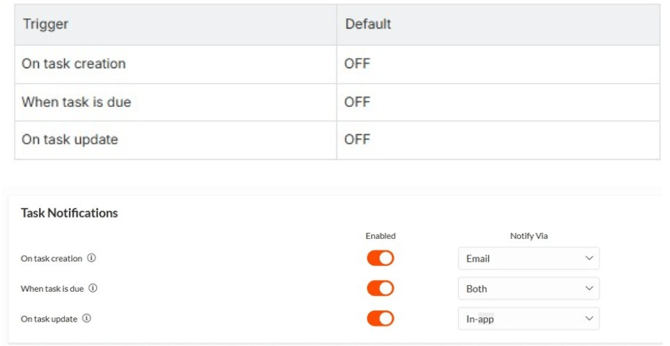
B. Navigate to Notification Preferences → My Notifications to Set Your Individual Task Preferences
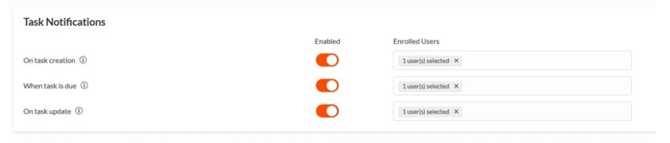
C. Go to Notification Preferences → Firm Notifications to Enroll Desired Users to Receive Task Notifications
2.Task Management Page:
Navigate to Administration → Task Management
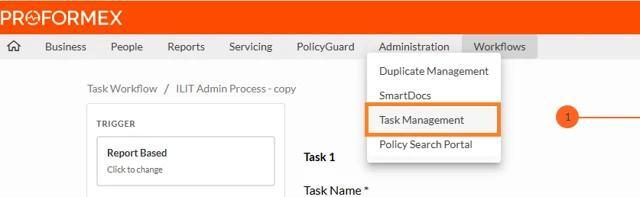
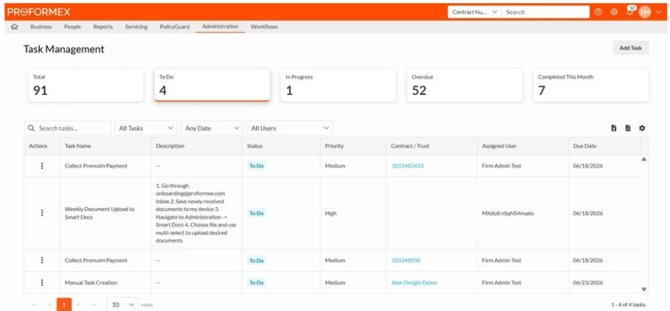
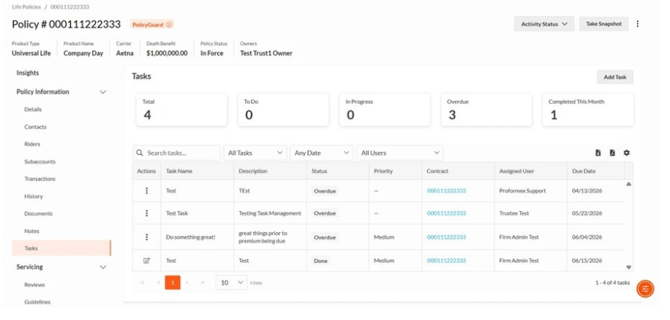
Or go to a policy’s details page and select the Tasks tab
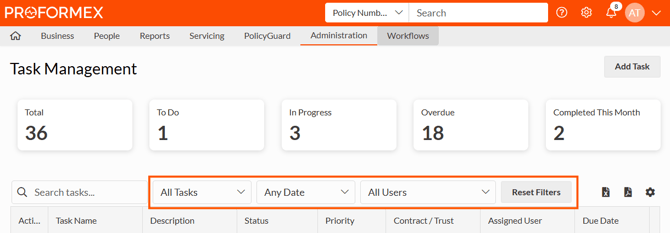
Search & Filtering Keyword search covers task name, description, contract number, and assigned user. Additional filters include:
-
Task Type — All Tasks (default), Report Based, Trust Activity, or Manual
-
Date Filter — Any Date (default), Last 7 Days, Last 30 Days, Last Quarter, or YTD, applied against task due date
-
User Filter - Allows user to filter task by specific user
- Reset Filters — restores all filters to their default values (Task: All Tasks, Date: Any Date, User: All Users) in a single click and immediately refreshes the task table
Filters can be used independently or in combination with results updating dynamically.
Task Table Enhancements All columns are sortable (ascending/descending). Tasks are automatically marked Overdue when the due date passes without completion. A three- dot overflow menu on each row provides quick access to Edit and Mark as Complete actions. An export icon allows users to download the current table view.
3. Creating Single Tasks:
Manual Task Creation The Add Task modal includes: Task Name, Description, Contract Number, Due Date, Priority, and Assign To.
Every manually created task requires a Task Association Type, which determines whether the task is linked to a contract, a trust, or is standalone:
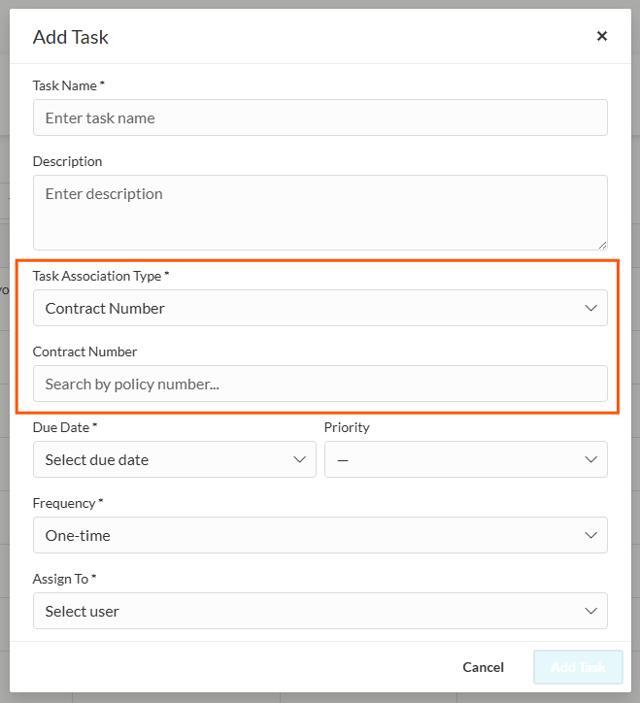
Task Association Types:
- Contract Number — displays a search field to find and select an existing contract/policy.
- Trust (if applicable) — displays a Trust Name search field to find and select an existing trust. The trust is linked to the task on save.
- None — no additional field is shown. Use this for standalone tasks not tied to a contract or trust.
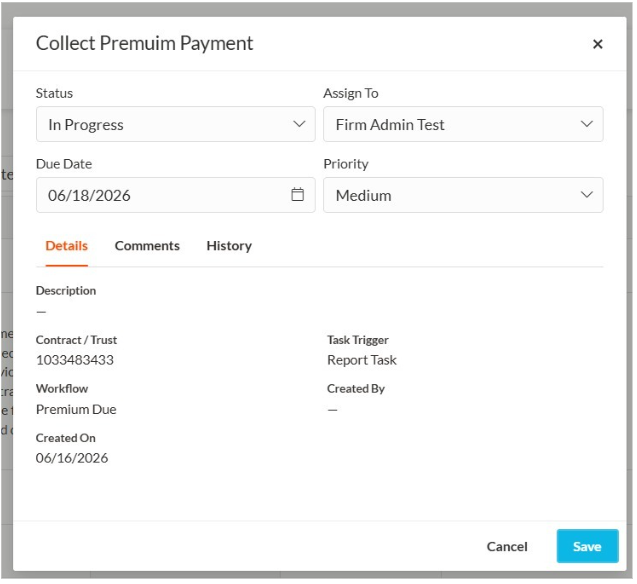
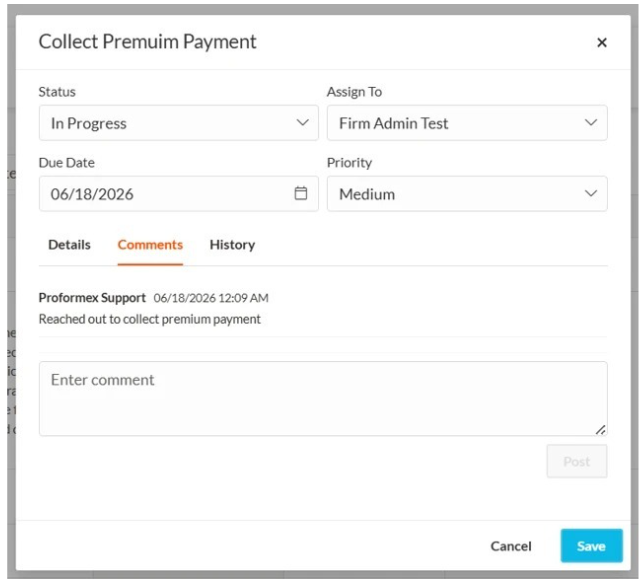
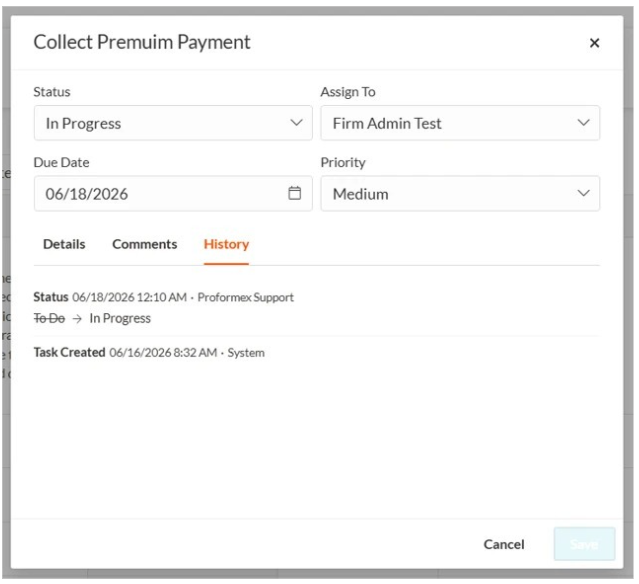
Task Preview & Edit Selecting any task opens a detailed modal with editable fields for Status, Assigned User, Due Date, and Priority. The Save button remains disabled until a change is made. Three tabs organize task detail:
-
Details — read-only view of task description, associated contract/policy, trigger
source, created by, and created date.
-
Comments — chronological comment thread with the ability to add new comments
via a text input and Post button.
-
History — full audit trail showing field-level changes, previous and new values, the
user who made the change, and timestamp.
The modal can be closed at any time; unsaved changes are discarded on close.
Due Date and Frequency
Due Date now also includes: Tomorrow (sets the due date to the current date plus one day) and Custom (opens a date picker to choose a specific date).
Frequency determines whether a task repeats. Options: One-time (default), Daily, Weekly, Bi-weekly, Monthly, Quarterly, Semi-Annually, Annually.
Selecting any option other than One-time automatically generates the next task instance on that schedule when the current task is saved:
- The next due date is calculated from the current task's due date plus the selected interval — not from the completion date. For example, a monthly task due June 1 that's completed June 10 generates its next instance due July 1.
- Generation happens on schedule regardless of whether the prior task is still open or already completed.
- Each new instance copies the Task Name, Description, Assigned User, Priority, and Due Date Rules from the source task.
4. Home Dashboard - Task Summary Widget
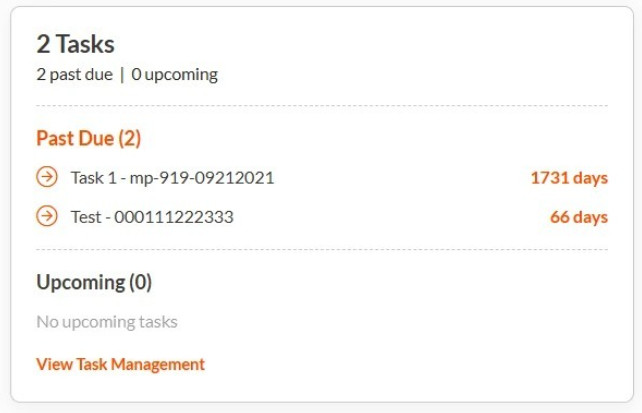
A new Task Summary widget can be added to the Home Dashboard, providing a quick view of past due and upcoming tasks without leaving the homepage.
Reach out to your dedicated Customer Success Manager to enable this widget on your home page
Widget Header
Displays the total task count with a breakdown of past due vs. upcoming tasks at a glance.
Past Due Tasks
Shows up to 3 of the most overdue tasks, sorted by days overdue (descending), with the number of days overdue shown per task. Displays "No past due tasks" when none exist.
Upcoming Tasks
Tasks are grouped into four time-based buckets: Today, This Week (next 7 days), Next Week, This Month (next 30 days)
Each bucket shows a task count (e.g., Today (3)). Displays "No upcoming tasks" when none exist.
Navigation
A View Task Management link navigates directly to the Task Management section with filters pre-applied.
Data Refresh
Widget data refreshes on page load and when returning to the homepage tab.
5. Task Management - Task Summary Email
A new email notification will be sent when notification settings have been enabled to notify users of tasks due today and when an assigned task has been updated, providing a personalized summary and a direct link back into the application.
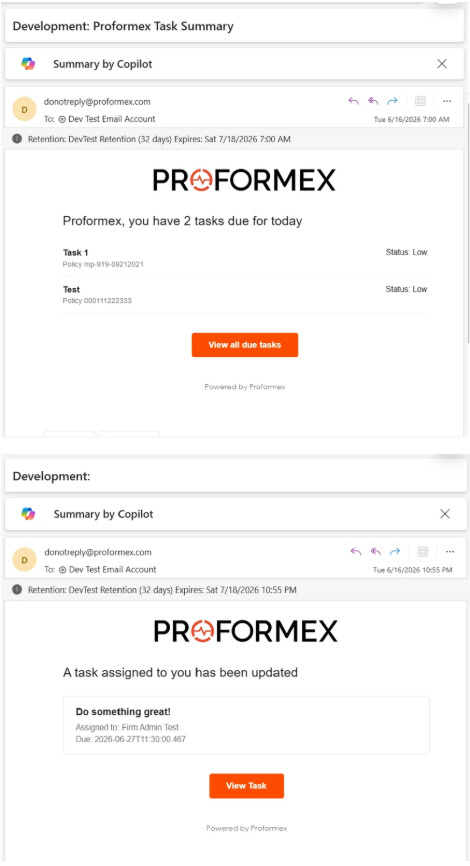
Select the orange View Task button to be directed to see the open task(s) in Proformex
6. Task Management Workflows
Task Workflows let admin users configure rule-based automation that generates and assigns tasks automatically based on defined triggers.
Task Workflows are found under the Workflows tab. This feature is controlled by a firm-level feature flag — contact your Customer Success Manager to have it enabled. Configuring workflows is restricted to admin users; non-admin users won't see the Task Workflow section under Workflows.
Managing workflows
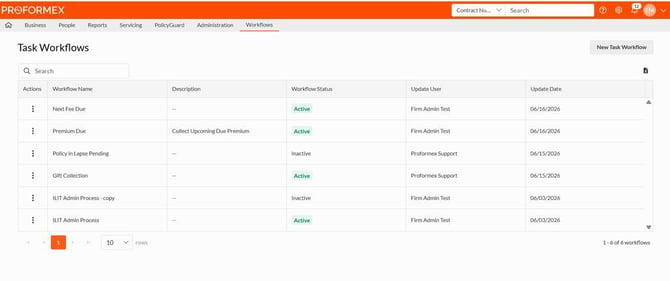
The Task Workflows list shows each workflow's name, description, status, and last-modified details.
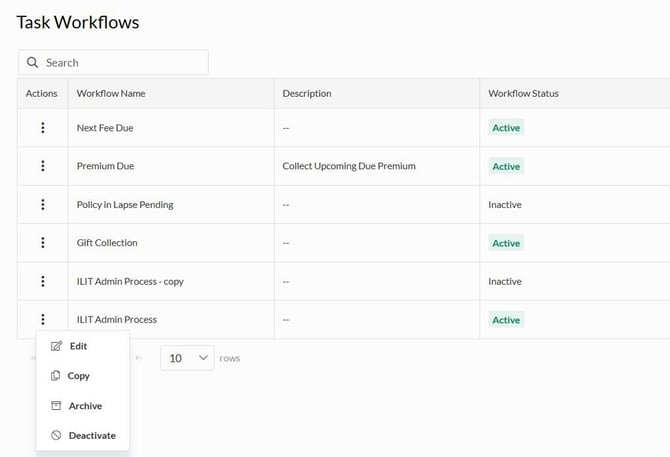
Workflows: Edit, Copy, Archive, or Deactivate.
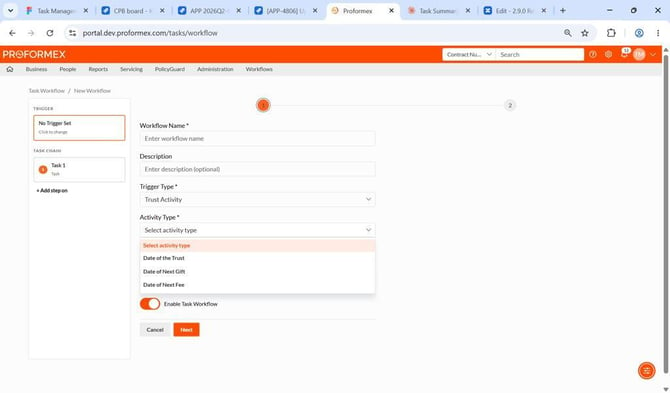
Setting a trigger
Every workflow starts with a trigger type:
- Trust Activity (if applicable) — triggers on a trust-related date: Date of Trust, Date of Next Gift, or Date of Next Fee. Set a lead time of 30, 60, or 90 days.
Report Based — triggers when a policy appears on a selected policy or annuity report.
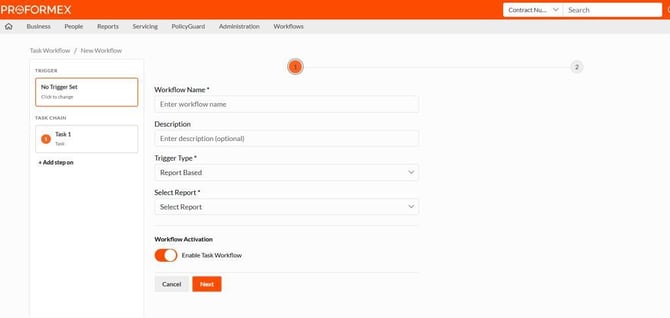
(Workflow status — (active/inactive) is also set at this step.
Adding task steps
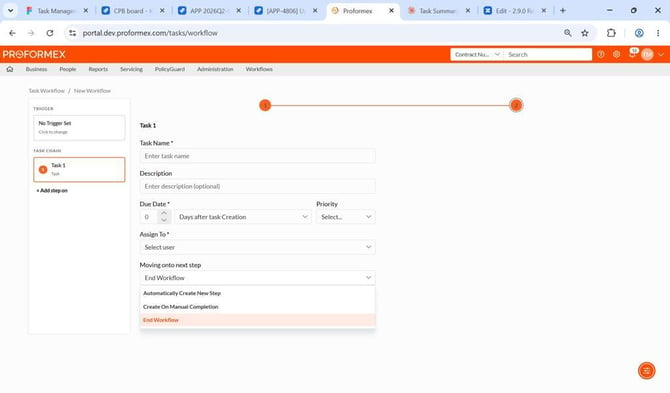
A workflow can include one or more task steps, each configured with a name, description, due date, priority, and assigned user. Steps are chained together using one of the following transition options:
- Automatically Create Next Step — the next task is created after a set number of days, or immediately.
- Create on Manual Completion — the next task is created once the previous task is manually marked complete.
- End Workflow — ends the chain; no further steps are created.